Overview:
We’re excited to introduce a new
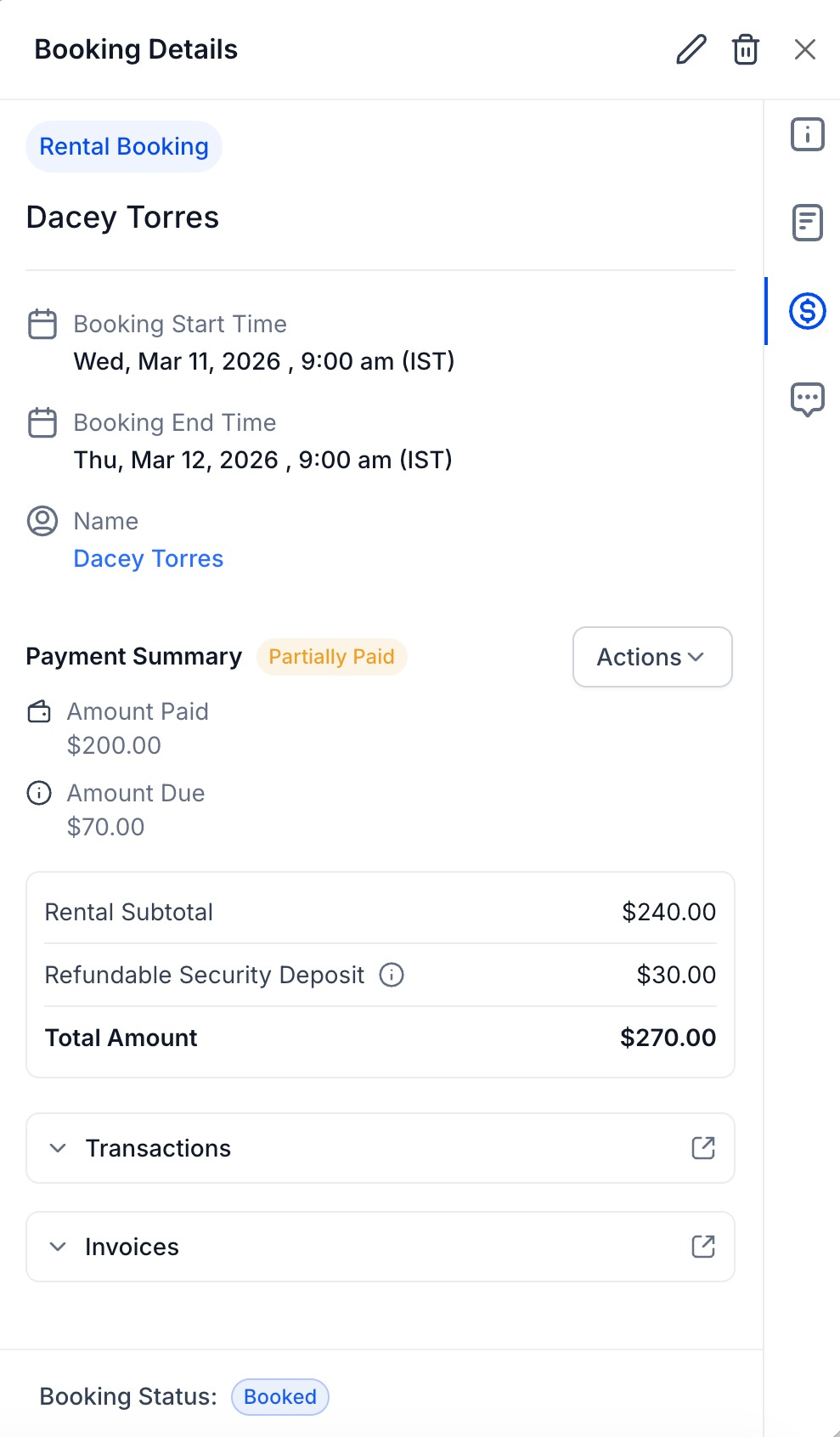
Payments Tab inside the Rental Booking View Modal
, along with thoughtful enhancements
to the Create and Edit Booking
experience.The Payments Tab gives you a complete, centralized view of all payment-related activity for each rental booking — while the updated booking flow improves clarity and usability when managing bookings.
What’s New
Payments Tab in Rental Booking
You can now manage payments directly inside the booking view.
With the new Payments Tab, you can:
- View total amount, paid amount, remaining balance and payment breakdown
- Review all transactions tied to the booking
- Access related invoices
- Collect remaining payments directly from the booking
- Collect or manage security deposits (when enabled)
This creates a dedicated space for handling all financial actions without mixing them into operational booking details.
Improved Payment Summary & Invoice Generation
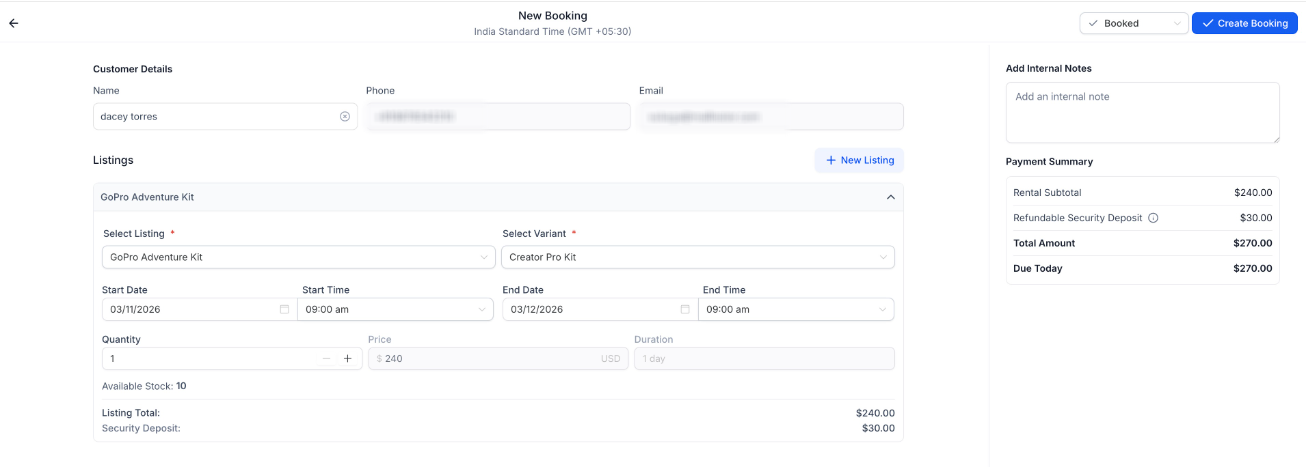
The Payment Summary section within the
create
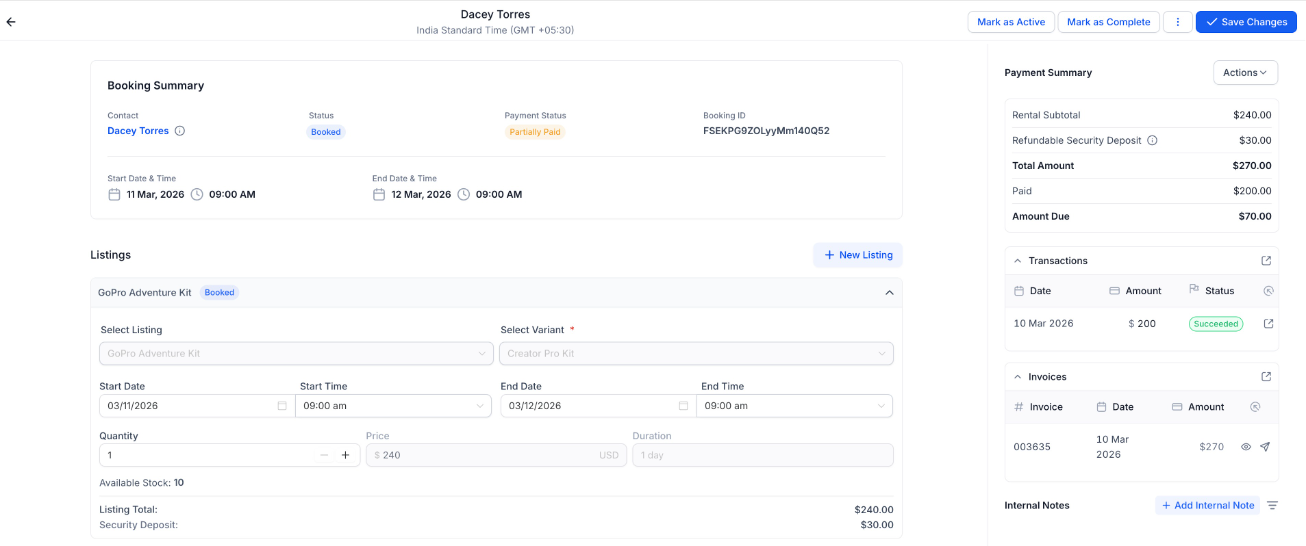
and edit
modal
has been refined to:- Present rental charges, deposits (when enabled), totals, and balances more clearly
- Emphasize key financial values
- Dynamically reflect booking edits (date changes, quantity updates, listing additions, etc.)
We’ve also improved how
invoices
behave when bookings are updated
.When you edit a booking — even after it has been fully paid —
the same invoice is updated
automatically to reflect the latest changes.This ensures:
- One booking → one invoice
- Simpler reconciliation
- A smoother editing experience
Note: A booking still cannot be modified in a way that reduces the total below the amount already paid.
Cleaner Booking Layout & Better Note Accessibility
We’ve also improved the overall booking experience:
- A sleeker, more scannable Booking Summary section
- More accessible Internal Notes for smoother team collaboration
These refinements make reviewing and updating bookings faster and more intuitive.
How to Use
- Open any Rental Booking
- Go to the Payments Tabinside the booking view
- Review transactions, invoices, and balances
- Use available actions to collect payments or manage deposits as needed
- Click on the Edit icon to edit the booking
Why This Matters
- Manage payment activity without leaving the booking view
- Collect outstanding balances in fewer clicks
- Handle security deposits more seamlessly
- Reduce confusion during booking edits
Was this article helpful?
That’s Great!
Thank you for your feedback
Sorry! We couldn't be helpful
Thank you for your feedback
Feedback sent
We appreciate your effort and will try to fix the article