Overview
We've expanded and enhanced Roles & Permissions to provide a consistent permission model across Meetings, Services, and Rentals.
The existing permissions have now been extended to Services and Rentals. You can now configure more granular permissions for administrators and users, making it easier to control exactly what each team member can view and manage across all scheduling modules.
What's New
Extended the existing permission model from Meetings to Services and Rentals.
Existing permissions now cover:
Appointments & bookings across Meetings, Services, and Rentals.
Groups & categories across Meetings, Services, and Rentals.
Setup for calendars, services, and rental listings.
Added a new Manage associated resources permission to control access to locations, staff, resources, add-ons, and other related components.
Added a new Manage preferences & global settings permission to independently control access to module-level global settings and preferences.
How It Works
Each module now follows the same permission structure:
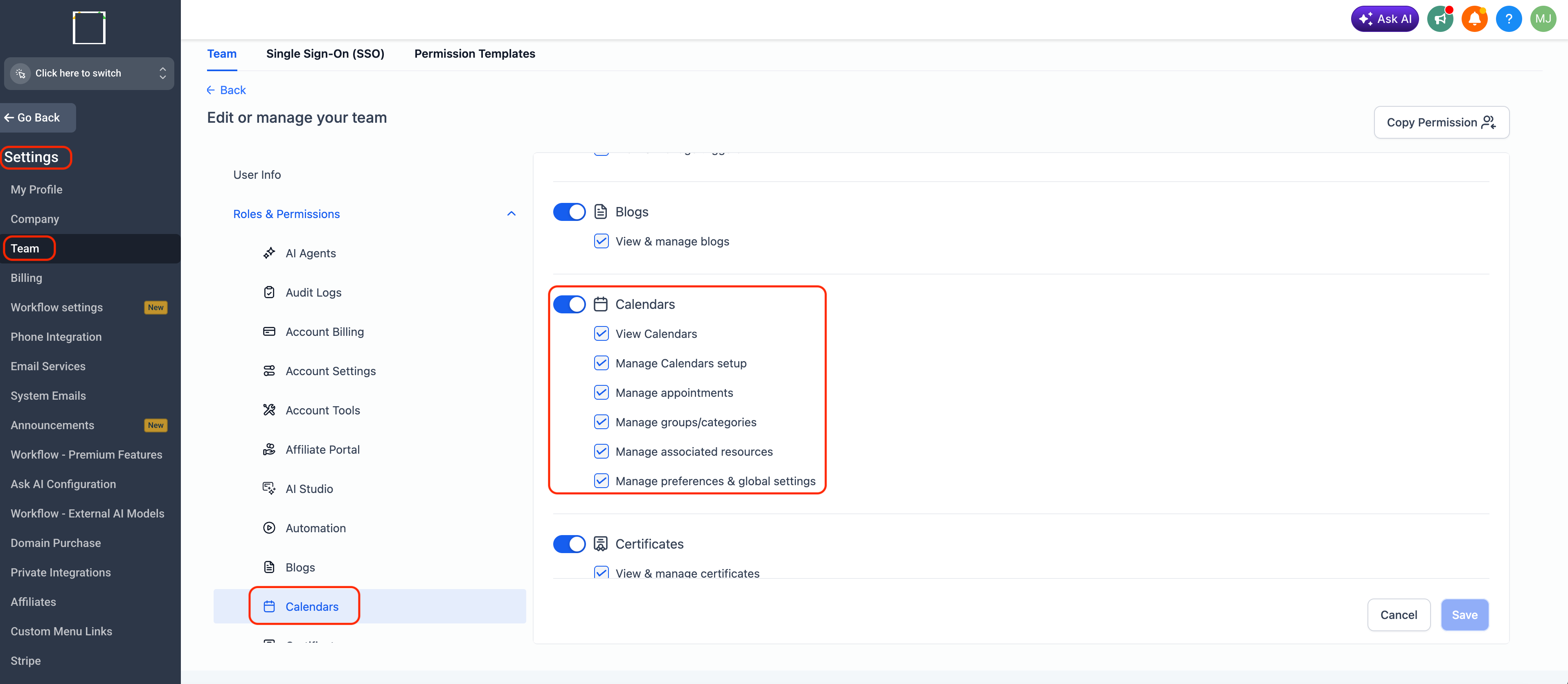
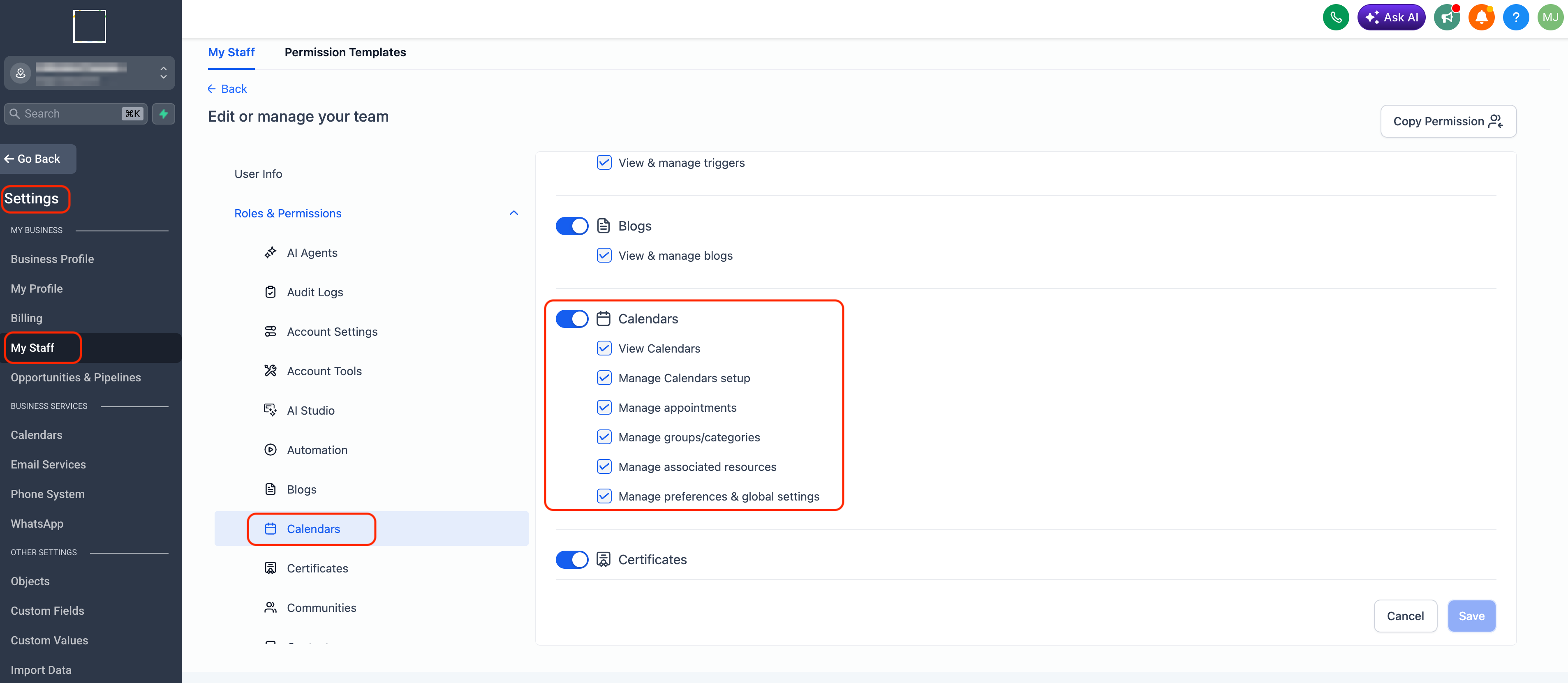
View Calendars – Access Meetings, Services, or Rentals.
Manage setup – Manage calendars, services, or rental listings.
Manage appointments – Manage appointments and bookings across all verticals.
Manage groups/categories – Manage meeting groups, service categories, and rental categories.
Manage associated resources – Manage locations, staff, resources, add-ons, and other associated components.
Manage preferences & global settings – Manage vertical-level global settings and preferences.
Administrators can mix and match these permissions to create role-specific access for every team member.
How to Set It Up
Administrator View
Navigate to:
Settings → Team → Select Team Member → Roles & Permissions → Calendars
User Management View
Navigate to:
Settings → My Staff → Select Team Member → Roles & Permissions → Calendars
Configure the required View and Manage permissions, then click Save.
Why This Matters
Brings a consistent permissions experience across Meetings, Services, and Rentals.
Gives administrators more granular control over what each team member can manage.
Makes it easier to assign role-specific responsibilities without granting unnecessary access.
Improves security and scalability as teams and operations grow.
Was this article helpful?
That’s Great!
Thank you for your feedback
Sorry! We couldn't be helpful
Thank you for your feedback
Feedback sent
We appreciate your effort and will try to fix the article